People
Invite people, move them between Departments, add them to Projects, make General Managers and remove people from the Organization.
Open Organization settings › People. The Members table lists everyone in the Organization, and Pending invitations lists people who have not yet accepted.
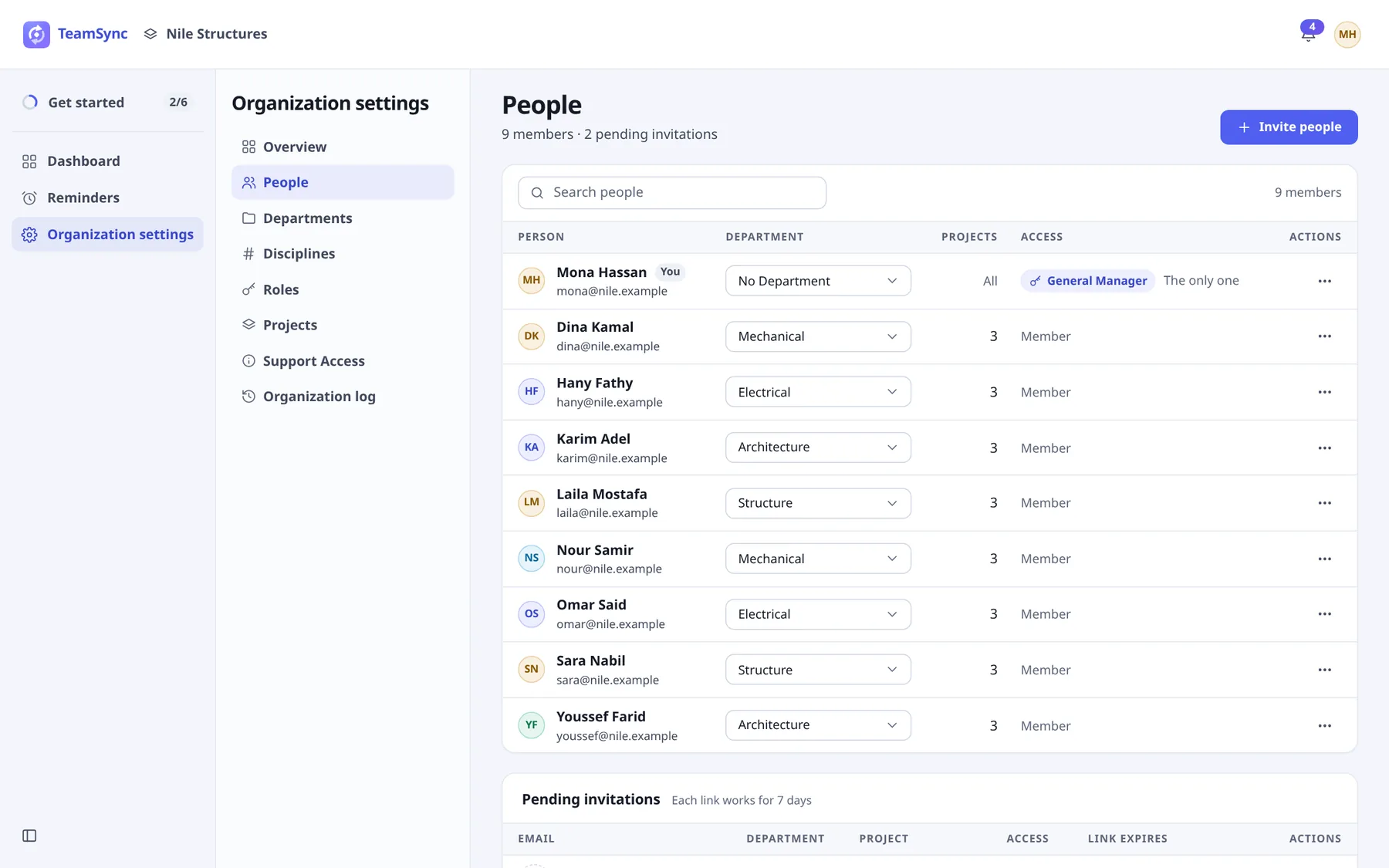
#The Members table
| Column | What it shows |
|---|---|
| Person | Name and email. You marks your own row. |
| Department | A picker. Change it right in the row. No Department is allowed. |
| Projects | How many Projects the person is on. All for a General Manager. |
| Access | General Manager, or Member. |
| Actions | A menu for each person: Add to Projects, make or remove a General Manager, remove from the Organization. |
Use Search people to narrow the list by name or email.
#Invite people
Each person you invite uses one seat of your License when they accept.
Choose Invite people
It is the button at the top right of the People page.
Enter their email
In Email, type the address they will sign in with.
Choose a Department
In Department, pick one. No Department is the default.
Optionally choose Projects
Under Projects, tick each Project to add them to when they accept, and choose their Role on it. Tick none to add them later.
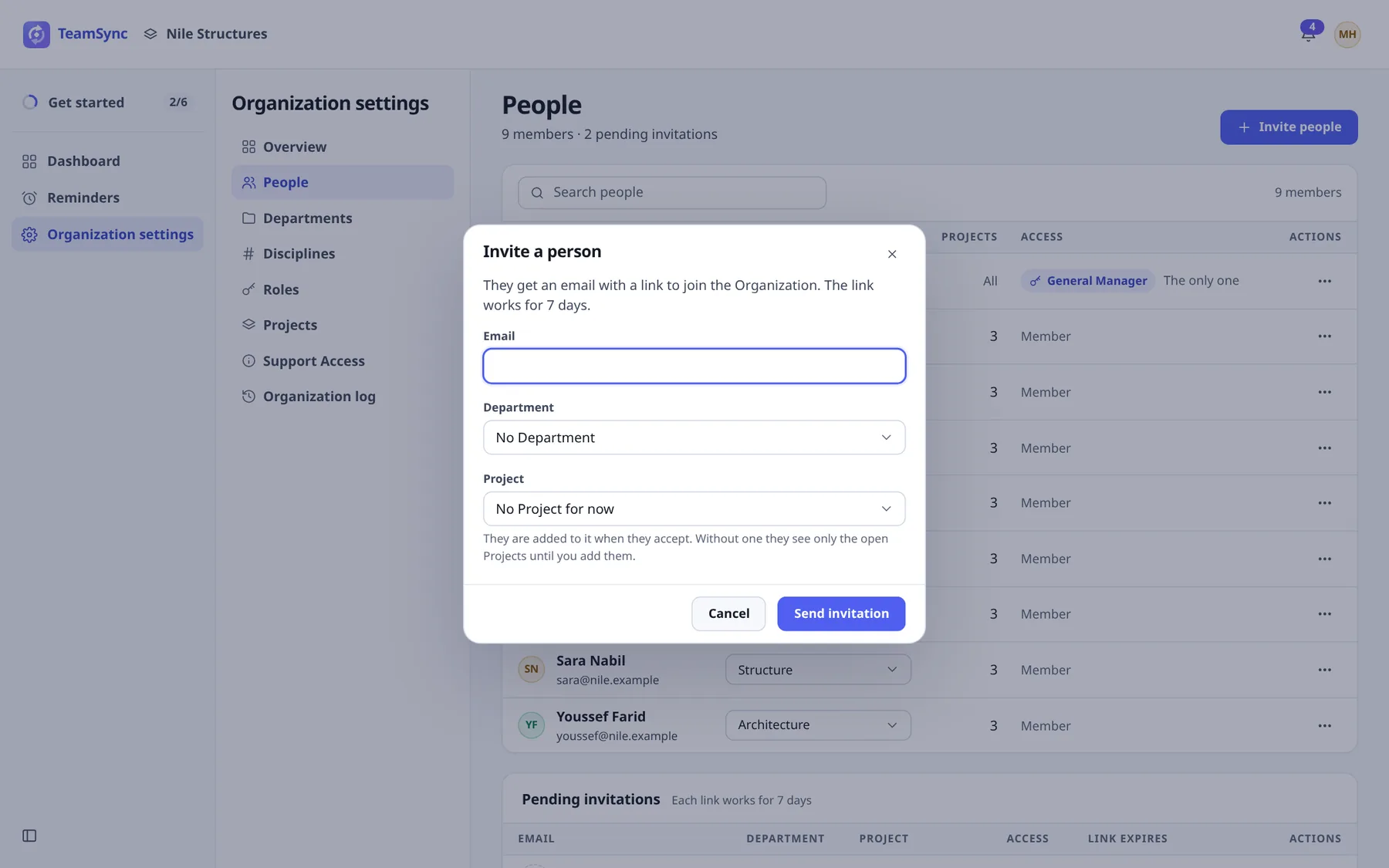
The Invite a person dialog. Choose Send invitation
They get an email with a link to join the Organization. The link works for 7 days.
Note
Without a Project, a new member sees only the Open Projects until you add them. See Projects.
#Pending invitations
Below the Members table, Pending invitations lists each invitation with its Department, Project, Role and a Link expires date. To withdraw one, choose Cancel invitation, then confirm with Cancel invitation again (or Keep it). The link stops working. You can invite the person again later.
#Invite links
To invite several people at once, choose Create invite link. Tick any Projects they should join and their Role on each, choose how long the link works and, if you like, how many people can join through it. Without any Projects they join the Organization only. To limit who can join, turn on Only allow specific email domains and type each domain, pressing comma after each one, like example.com. Copy the link and share it. You can copy it again later with Copy link in its row under Invite links.
Choose Edit on a link to change its Projects, how long it works, how many people can join or its email domains. The link itself stays the same, so anyone who already has it can keep using it. If you limit its domains, invitations it sent to other addresses are cancelled; people who already joined stay. A person you invite by name can use any address, whatever your links allow.
Someone new enters their email and gets a personal invitation to finish joining, so the address is always theirs. Someone who already has a TeamSync account signs in with their password and joins at once. Each person uses one seat of your License.
Note
Anyone who has the link can ask to join, so share it only with the people you mean to invite. Invite links on the People page shows who has joined through each one. Choose Turn off if a link gets out: it stops working at once, and invitations it sent that nobody has accepted are cancelled. A link also stops working if the General Manager who made it stops being one.
#Add people to Projects
Open the person’s menu
In the Actions column, open the menu and choose Add to Projects.
Tick the Projects
Tick each Project and choose the person’s Role on it. Use Search Projects if the list is long. A Project they are already on shows Already on, with their Role.
Confirm
Choose Add to Projects (the button counts them, for example Add to 2 Projects). They can open the Projects, and see the Issues their Role allows, at once.
You can also manage a Project’s people from its Team tab. See Team and Project settings.
#Change a Department
Pick a new Department in the person’s row. TeamSync asks you to confirm with Move to the new Department.
Careful
A Department affects what some people see. Where a person may see only their Department’s Issues, they see the new Department’s Issues instead, at once, including old Issues. See Issue Visibility.
#Let someone invite people
A General Manager can let a person invite people without making them a General Manager. Open their Actions menu and choose Let … invite people. TeamSync warns you before it turns this on: everyone they invite joins without asking you first, and takes one of your License’s seats. Confirm with Yes, let them invite. Their row then shows Can invite.
They see Organization settings › People with the same Invite people dialog as a General Manager: By email or By invite link, into a Department and straight into the Projects where they can already add Members, with a Role below their own on each. They see, change and cancel only their own invitations and links. They can’t invite a General Manager, let others invite or edit Departments.
You see everything they send: their invitations are marked Sent by and their links Made by, with their name, and you can cancel the invitations and edit or turn off the links like your own.
To take it away, choose Stop … inviting people. Their invite links are turned off and the invitations they sent that nobody has accepted are cancelled, at once; this also happens if you remove them from the Organization. Someone who accepts an invitation they sent joins a Project they chose only if they could still add people to it with that Role.
#Make and remove General Managers
General Managers see every Project and Issue, and manage people, Roles, Departments, Projects and Support Access, including removing other General Managers.
- To make someone a General Manager, open their Actions menu and choose Make General Manager, then confirm.
- To take it away, choose Remove General Manager in the menu. The person stays in the Organization but loses Organization settings, and keeps only the Projects they are a Member of, plus Open Projects. The invitations they sent that nobody has accepted are cancelled, and their invite links are turned off.
An Organization always keeps at least one General Manager. If you are the only one, the table says The only one and you cannot remove yourself or be demoted. Make someone else a General Manager first.
#Remove someone
Open the person’s Actions menu and remove them from the Organization, then confirm with Yes, remove and their name. They lose access to the Organization and all its Projects at once, and it frees one seat of your License.
Note
Their Issues and comments stay. Removing someone does not delete their work.
Every one of these changes is written to the Organization log.
Can’t find what you need? Write to info@top-matrix.com and we’ll help.